Shopify SDK
Disco's Shopify SDK lets your Shopify app show Disco recommendations in your merchants' checkout. Each merchant gets its own Disco API key, and your checkout extension passes it to the DiscoRecommendations component from @disconetwork/shopify as its apiKey prop. Where you store the key is up to you; a shop metafield is one option.
This guide is for DiscoBeat channel partners whose product is a Shopify app. Disco owns the widget's UI code, so you don't build any offer UI yourself. The package runs on the same DiscoBeat setup you already use: your channel, your publishers (the merchants on your channel) and their API keys. If you also serve surfaces outside Shopify, keep integrating those the way you do today, for example with the Ad Recommendations API.
Get access
The Shopify SDK (@disconetwork/shopify) is a private package. It isn't published to the public npm registry, so npm install will not find it until your project is set up to reach Disco's registry.
Contact your Disco team to request access. They'll provide an npm token and the registry settings your project needs. Once those are in place, the install steps below work as written.
How it works
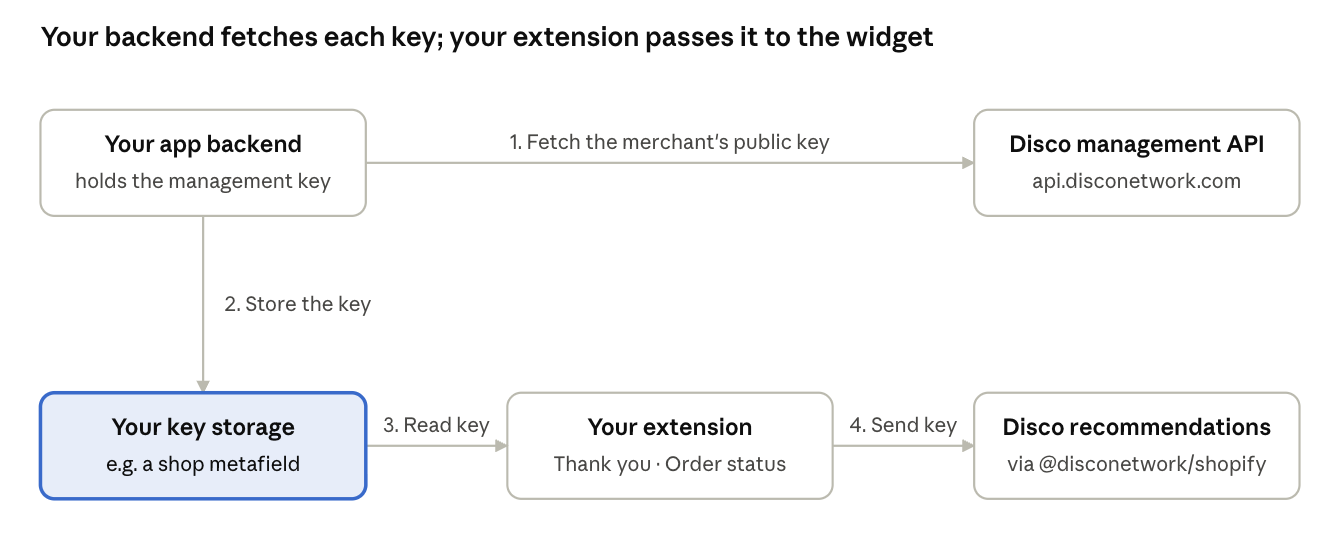
Your backend talks to Disco only to fetch and manage keys. At checkout, your extension gets the key from wherever you store it (a shop metafield, in this diagram) and passes it to the widget, which sends it to Disco with each request as the x-api-key header.
Before you start
You need four things in place before your first merchant goes live.
| What | Why | Where to get it |
|---|---|---|
A Disco channel management API key (disco_sk_…) | Your backend uses it to add merchants and fetch their public keys | Disco dashboard, Developers page |
| Approved merchants in your Disco channel | Disco issues public keys only for merchants it has approved | Disco API POST /discobeat/publishers/add/, or the dashboard |
| Network access for your checkout UI extension | The widget calls Disco from the extension with fetch() | Request it for your app in the Shopify Partner Dashboard, then set network_access = true in shopify.extension.toml |
| Access to the Shopify SDK | Your extension renders the widget with it | The @disconetwork/shopify npm package; Disco gives you access (see Get access) |
Your management API key is a secret. Keep it on your servers and never ship it in your extension; only the merchant's public key (disco_pk_…) goes to the browser.
Step 1: Get a public API key for each merchant
Each merchant needs its own live public key. Disco issues sandbox and live keys automatically when it approves a merchant for your channel; your backend fetches them with your management API key.
All calls go to https://api.disconetwork.com and authenticate with your management key in the x-api-key header. For the full set of channel endpoints, see the DiscoBeat Channel API.
-
Add the merchant to your channel. Send its brand name, store domain and categories. Disco reviews the request; once approved, the merchant appears in your publisher list.
curl -X POST https://api.disconetwork.com/discobeat/publishers/add/ \
  -H "x-api-key: $DISCO_MANAGEMENT_KEY" \
  -H "Content-Type: application/json" \
-d '{"items": [{"brand_name": "Acme Outdoors", "domain": "acmeoutdoors.com", "primary_category_id": "<category id>", "subcategory_ids": ["<subcategory id>"]}]}' -
Find the merchant's Disco publisher ID. List your publishers and match on domain. Store the
remote_idagainst the shop in your database.curl https://api.disconetwork.com/discobeat/publishers/list/ \
-H "x-api-key: $DISCO_MANAGEMENT_KEY" -
Read the merchant's keys. The
public_api_keysfield lists every active key, newest first. Use the newest key with"environment": "live". Passauto_issue_key=falseso the read never creates a key.curl "https://api.disconetwork.com/discobeat/publishers/details/<publisher_id>/?auto_issue_key=false" \
-H "x-api-key: $DISCO_MANAGEMENT_KEY""public_api_keys": [
{"remote_id": "…", "environment": "live", "plaintext": "disco_pk_live_…", "last_four": "a1b2", "display": "disco_pk_live_...a1b2", "created_at": "…"}
] -
If no live key exists, request one. This returns the existing key when there is one, so it is safe to retry.
curl -X POST https://api.disconetwork.com/discobeat/publishers/<publisher_id>/key/ \
  -H "x-api-key: $DISCO_MANAGEMENT_KEY" \
  -H "Content-Type: application/json" \
  -d '{"environment": "live"}'
Each key belongs to one merchant on your channel. Never share a key between shops: Disco attributes every impression and conversion to the merchant the key belongs to.
Step 2: Make the key available to your extension
DiscoRecommendations needs the merchant's key at runtime, passed as its apiKey prop (Step 3). Where your extension gets the key from is up to you. Two common options:
| Option | How your extension reads it | Trade-offs |
|---|---|---|
A shop metafield in your app's $app namespace | useAppMetafields, delivered with the page | No extra request at checkout; your backend writes it with the Admin API |
| Your own backend | fetch() from the extension, authenticated with a Shopify session token | One extra request per page load; your backend must be up for the widget to show |
Whichever you choose: keep one key per shop, update it whenever the key changes (see Rotating a key and uninstalls), and never send your management key to the extension.
Example: storing the key in a shop metafield
This guide's examples use a metafield named disco_api_key. Write it with the Admin GraphQL API, using the merchant's access token for your app:
mutation SetDiscoApiKey($shopId: ID!, $value: String!) {
  metafieldsSet(metafields: [{
    ownerId: $shopId
    namespace: "$app"
    key: "disco_api_key"
    type: "single_line_text_field"
    value: $value
  }]) {
    metafields { id }
    userErrors { field message code }
  }
}
$shopId is the shop's GID (gid://shopify/Shop/<id>), from query { shop { id } }. Treat any userErrors as a failure and retry. Re-writing the same value is harmless.
Step 3: Render the Disco widget in your extension
The Disco widget runs on the post-purchase pages: the Thank you page (purchase.thank-you.block.render) and the Order status page (customer-account.order-status.block.render). Render the DiscoRecommendations component from the @disconetwork/shopify package and pass the merchant's key as its apiKey prop; how your extension gets the key is up to you.
npm install @disconetwork/shopify @shopify/ui-extensions preact react@npm:@preact/compat
@shopify/ui-extensions (2026-07 API or newer) and preact are peer dependencies. The package also imports react, which Shopify extensions don't run, so alias react to @preact/compat; the react@npm:@preact/compat part of the command does this. pnpm add and yarn add take the same arguments.
Enable network access in your extension's shopify.extension.toml. If you keep the key in a shop metafield, declare it there too:
[extensions.capabilities]
network_access = true

[[extensions.metafields]]
namespace = "$app"
key = "disco_api_key"
With the key in a shop metafield, the extension looks like this:
import { useAppMetafields } from "@shopify/ui-extensions/checkout/preact";
import { DiscoRecommendations } from "@disconetwork/shopify";

function DiscoBlock() {
  const [entry] = useAppMetafields({ namespace: "$app", key: "disco_api_key" });
  const apiKey = entry?.metafield.value;
  if (!apiKey) return null; // no key for this shop: render nothing
  return <DiscoRecommendations apiKey={String(apiKey)} />;
}
If you have no key for the shop, render nothing rather than rendering the widget without one. The widget sends the key to Disco on every request.
Rotating a key and uninstalls
A merchant can hold several active keys at once, so you can replace a key without any downtime. Revoking takes effect immediately, so always update the stored key before you revoke.
-
Create a new key. Existing keys stay active. The response includes the new key's
remote_idandplaintext.curl -X POST https://api.disconetwork.com/discobeat/publishers/<publisher_id>/keys/ \
-H "x-api-key: $DISCO_MANAGEMENT_KEY" \
-H "Content-Type: application/json" \
-d '{"environment": "live"}' -
Store the new key wherever your extension reads it (Step 2).
-
Wait for open pages to pick it up. Pages loaded before the update still hold the old key. We suggest waiting 24 hours.
-
Revoke the old key by its
remote_id, from the detail endpoint'spublic_api_keys.curl -X POST https://api.disconetwork.com/discobeat/publishers/<publisher_id>/keys/<old_key_id>/revoke/ \
-H "x-api-key: $DISCO_MANAGEMENT_KEY"
If a key leaks or is misused, skip the wait: create a new key, store it, and revoke the old key straight away.
When a merchant uninstalls your app, revoke its keys. A revoked key cannot be reused, so if the shop reinstalls later, get a new key and store it again. Removing the merchant from your Disco channel (DELETE /discobeat/publishers/<publisher_id>/remove/) deletes all of its keys.
Testing and troubleshooting
Test on a Shopify development store with the merchant's sandbox key (disco_pk_sandbox_…), then switch to the live key when the merchant goes live.
When Disco rejects a key, the widget's request returns HTTP 401 with a JSON body such as {"error": "API key is revoked or expired"}.
| Symptom | Likely cause | Fix |
|---|---|---|
| Widget renders nothing and makes no request | No key reached the widget, e.g. the metafield is missing or not declared in shopify.extension.toml | Check that the key is stored for the shop (Step 2) and that your extension reads it (Step 3) |
| Request blocked before it reaches Disco | Network access not approved for your app | Request network access in the Partner Dashboard; set network_access = true |
401 x-api-key header is required | The extension sent an empty key | Check the stored key and how your extension reads it |
401 Unknown API key | The key doesn't exist, often a typo or a key copied from another environment | Fetch the merchant's current key (Step 1) and store it again |
401 API key is revoked or expired | Your extension still has a revoked key | Store the current key; next time, update it before revoking |
401 Only public keys can be used for ad serving | A management key (disco_sk_…) was used instead of a public key | Use the merchant's disco_pk_… key, and replace the exposed management key |
401 Publisher channel config not found for API key | The merchant was removed from your channel | Add the merchant again and use its new key |