Getting started with DiscoAds (Non-Shopify)
DiscoAds puts your brand in front of verified shoppers at the moment they've just bought something from another store — when the card is still warm and attention is high. This guide walks brands on any platform through creating your account and getting your first offer live.
On Shopify? Follow Getting started with DiscoAds on Shopify instead — your setup runs through the Disco Shopify app, which automates several of the steps below.
How DiscoAds works
- A shopper checks out from one of the stores in the Disco network.
- Disco's matching engine decides, in that moment, whether your brand is a strong fit for that shopper based on what they actually buy.
- If it is, your offer is shown — as a recommendation, not an interruption.
- The shopper clicks through to your site. You pay only for performance, based on your bid model.
You're reaching people who just demonstrated they buy in your category — not browsers.
Creating your account
-
Sign up. From the login page, choose Get started and create your account with your work email.
-
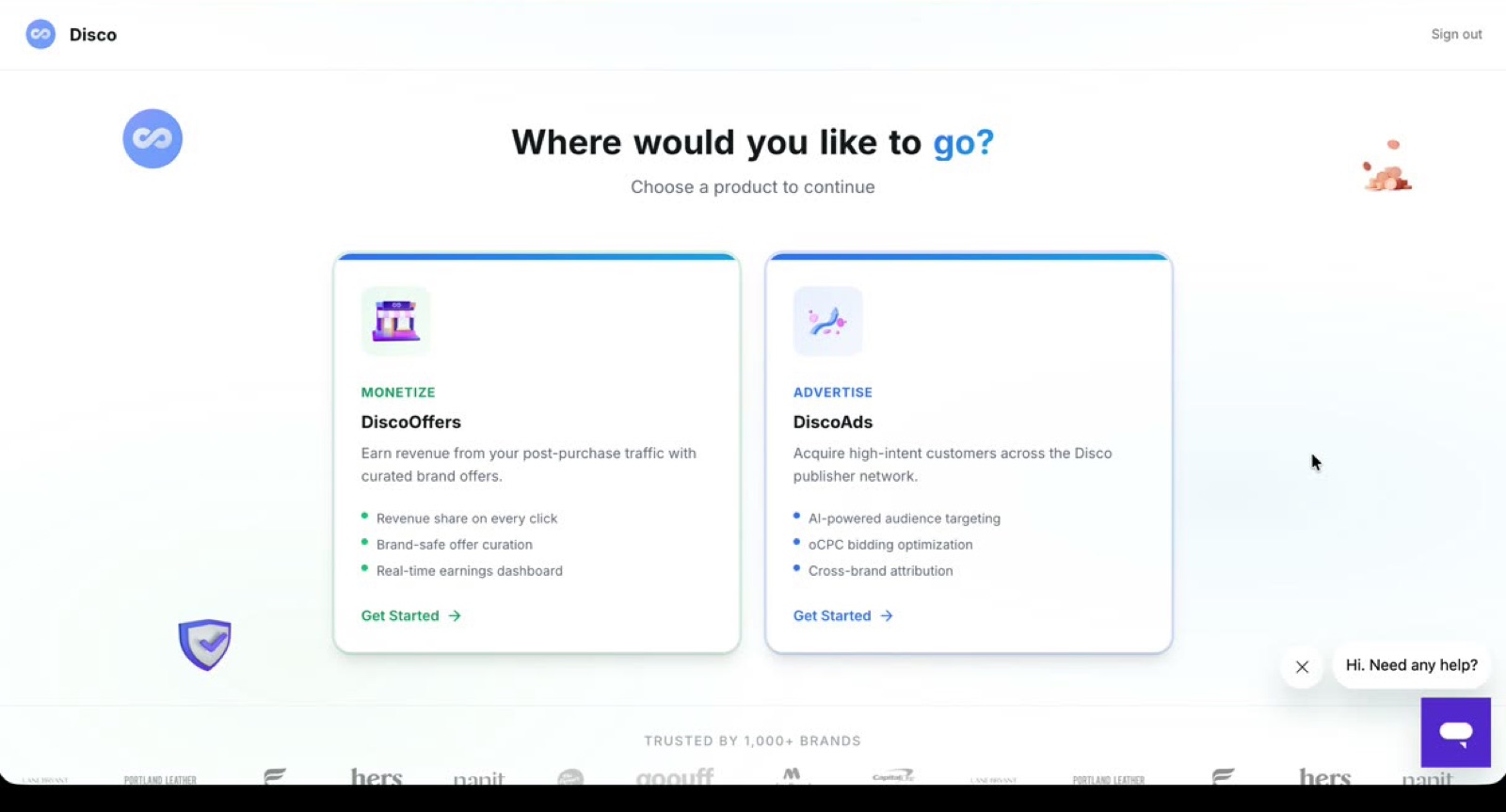
Choose DiscoAds. On the "Where would you like to go?" screen, pick DiscoAds (advertise across the network). You can enable DiscoOffers — earn as a publisher — later too; start with one, add the other anytime. Many brands do both.
-
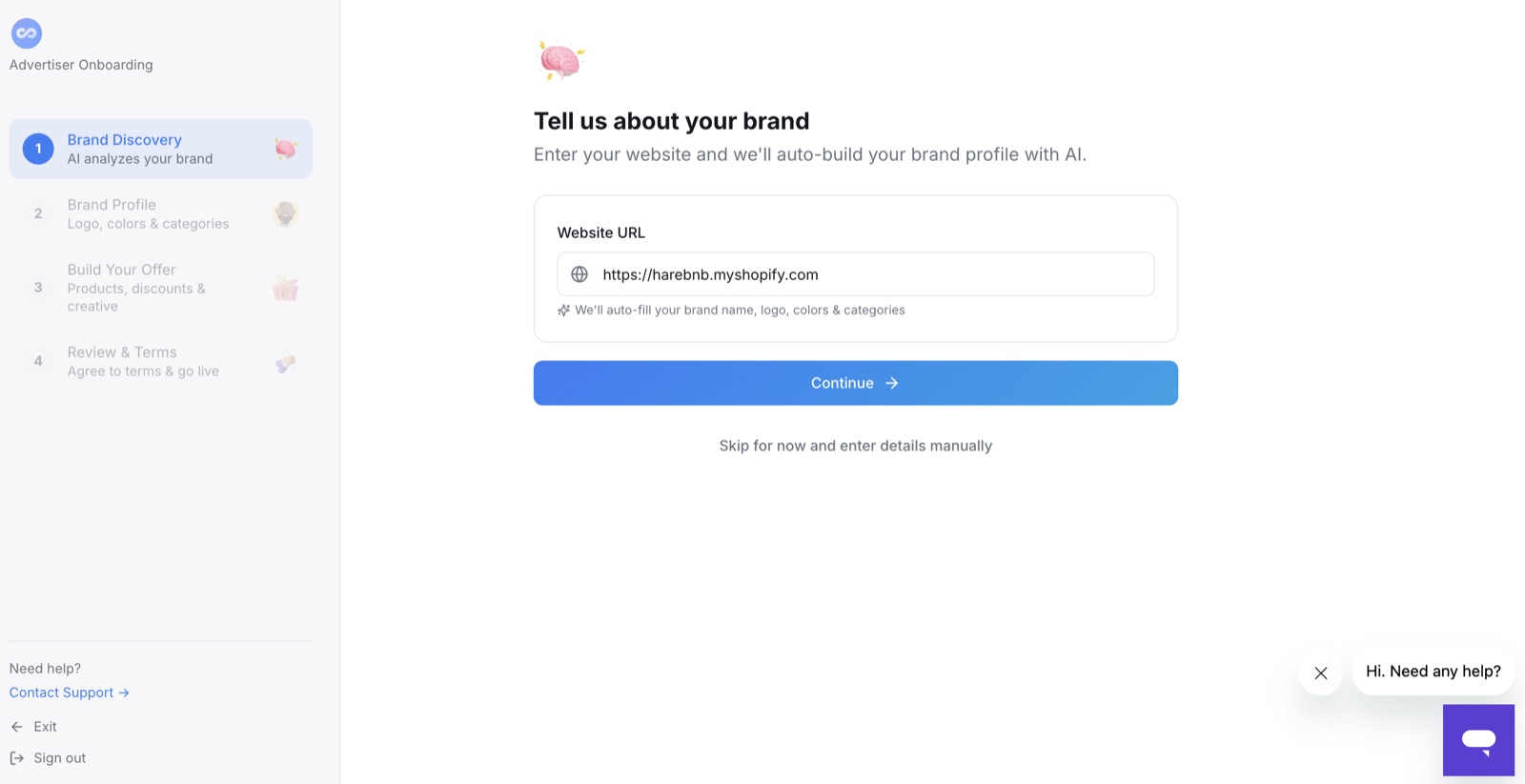
Tell us about your brand. Enter your website URL and Disco scans it to auto-build your brand profile — name, logo, colors, tagline, and a short description.
-
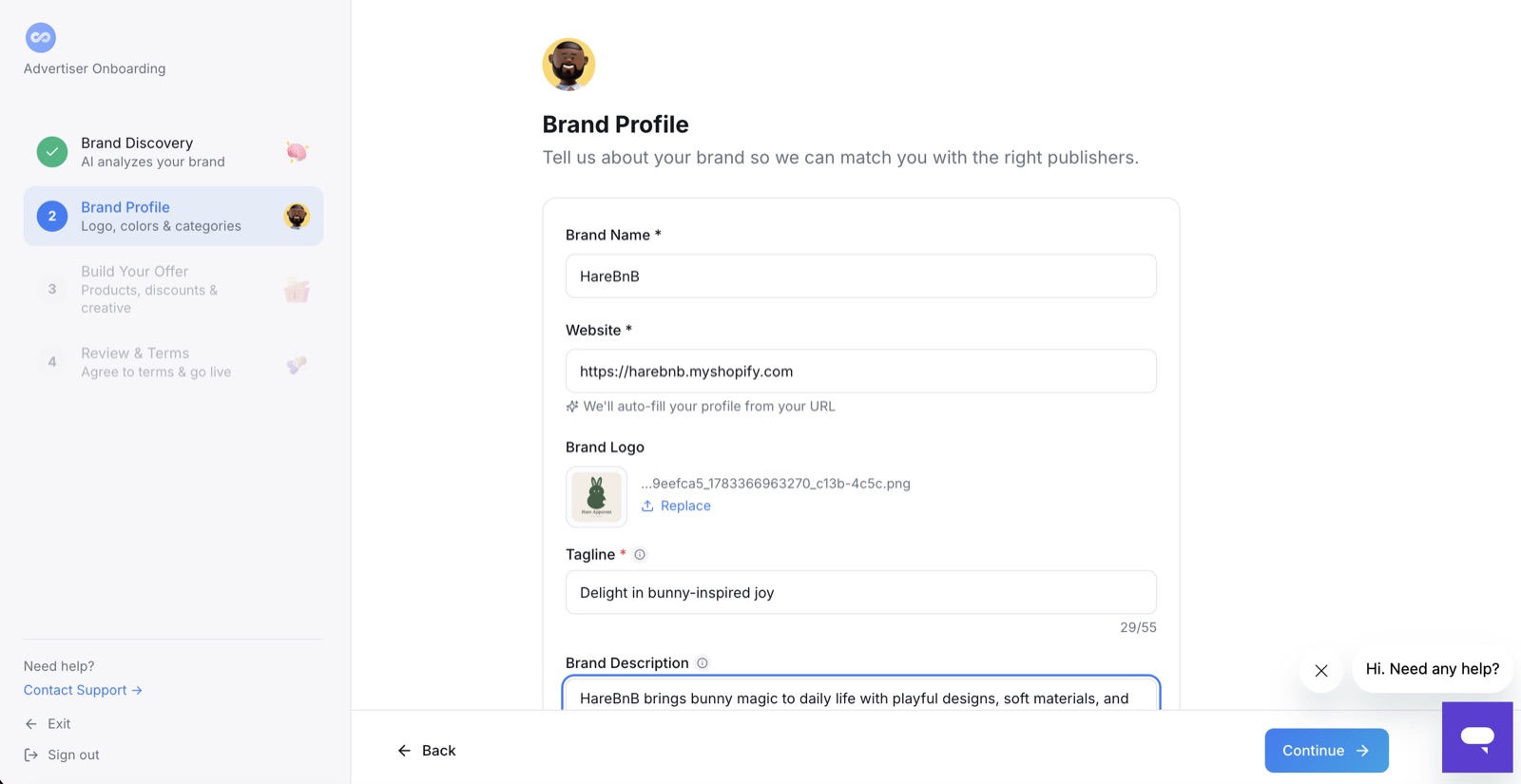
Review your Brand Profile. Check what the scan pulled and fix anything that's off — replace the logo, tighten the tagline. Your description also gives the matching model context, so keep it clear.
-
Select your categories. Choose the categories that describe your company, set a primary category, and pick at least one subcategory. Verify these carefully — they're the basis for where our recommendation model shows your offers.
-
Set up your first offer. See Setting up your offer.
-
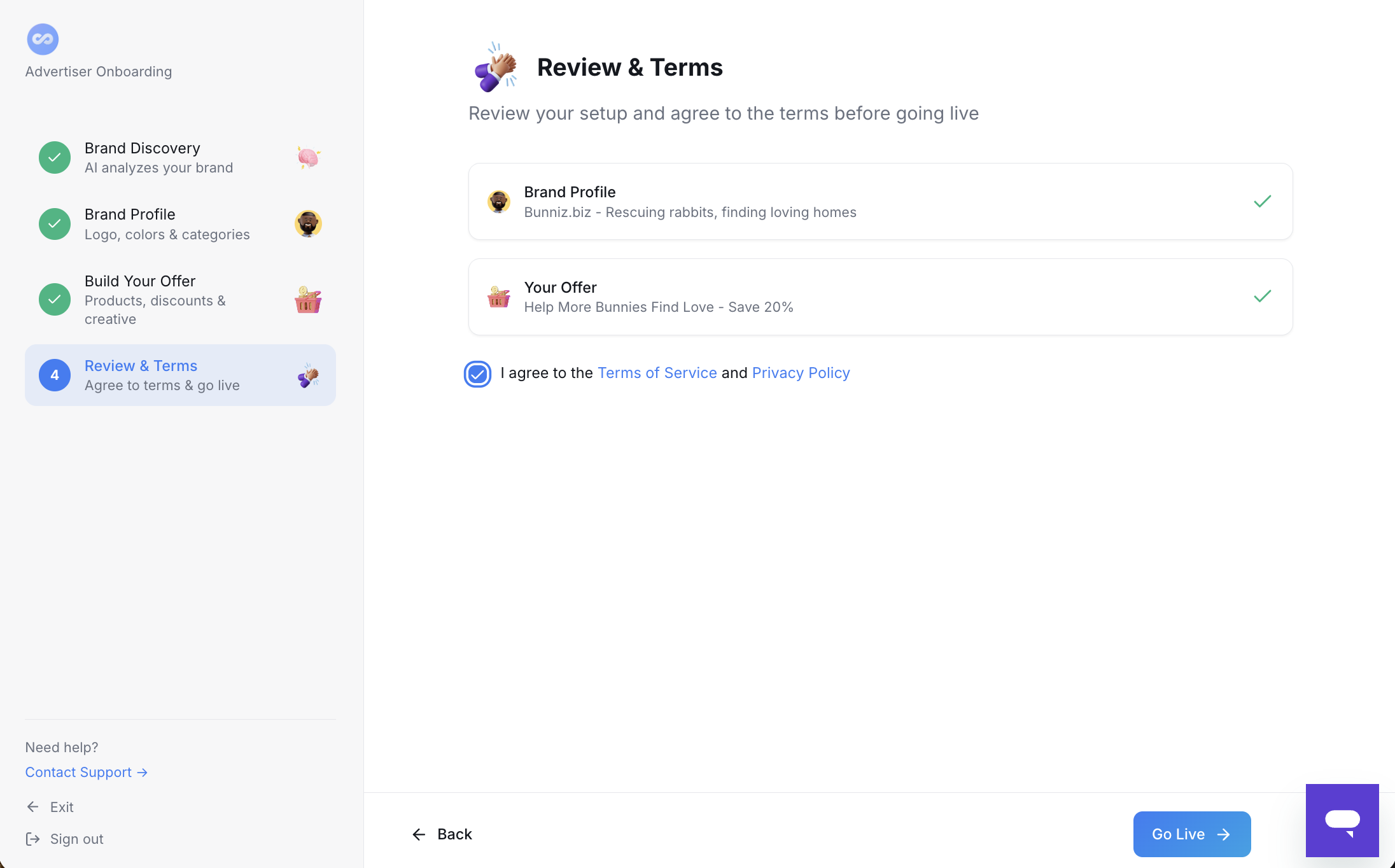
Review and go live. The last onboarding step shows your Brand Profile and offer for a final check — agree to the Terms of Service and Privacy Policy, then hit Go Live.
Finish setup to go live
Your first offer won't go live until setup is complete. Alongside your offer, you'll:
-
Confirm your brand visual assets. Go to your brand section to verify your logo was captured correctly and add a 16:9 banner image. This is requested from every advertiser — nice to have, not required to launch. See Ad specs and creative guidelines.
-
Set your bid — Cost-per-click or, if you have conversion tracking set up, you can do CPA/CPO. See Setting your bid.
-
Set up conversion tracking — choose the method that fits your stack: postback (most common), Event API / Web SDK, or a supported partner like Impact or AppsFlyer. See Setting up conversion tracking.
-
Add billing details — DiscoAds bills through Stripe. Add your payment method in the Stripe billing portal, or see Managing your account, team, and billing (DiscoAds).
-
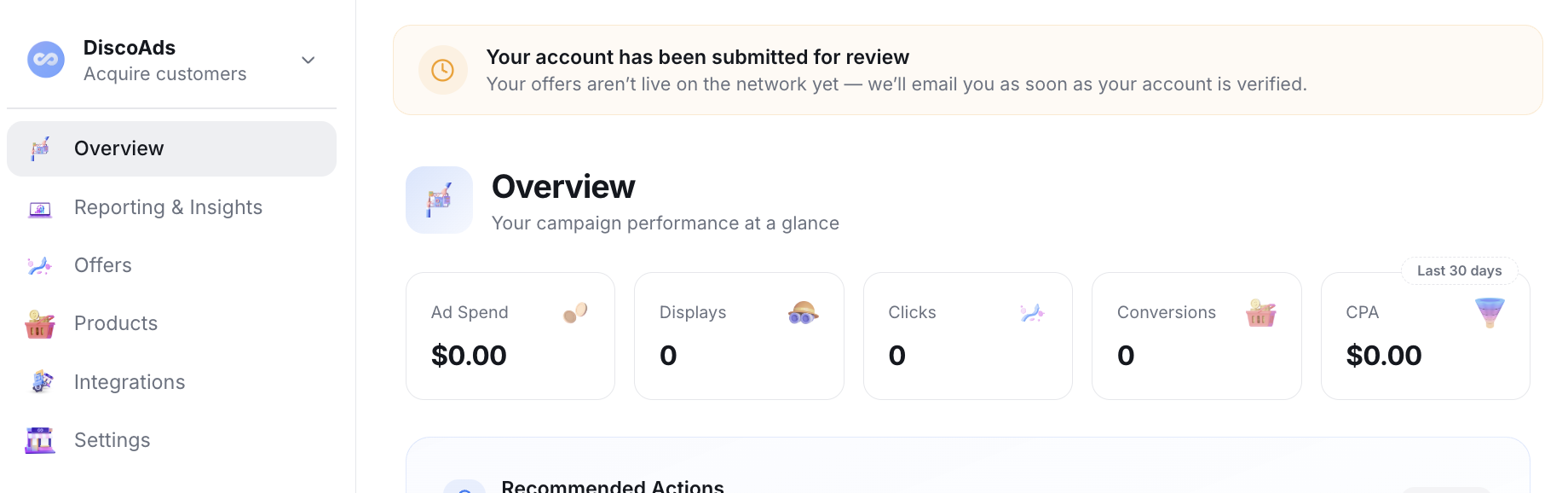
Get the official OK — the final step. Once everything above is done, our support team reviews your account before your offers go live. Every advertiser goes through this review, and you'll see a banner in the platform letting you know while it's underway.
What to expect once you're live
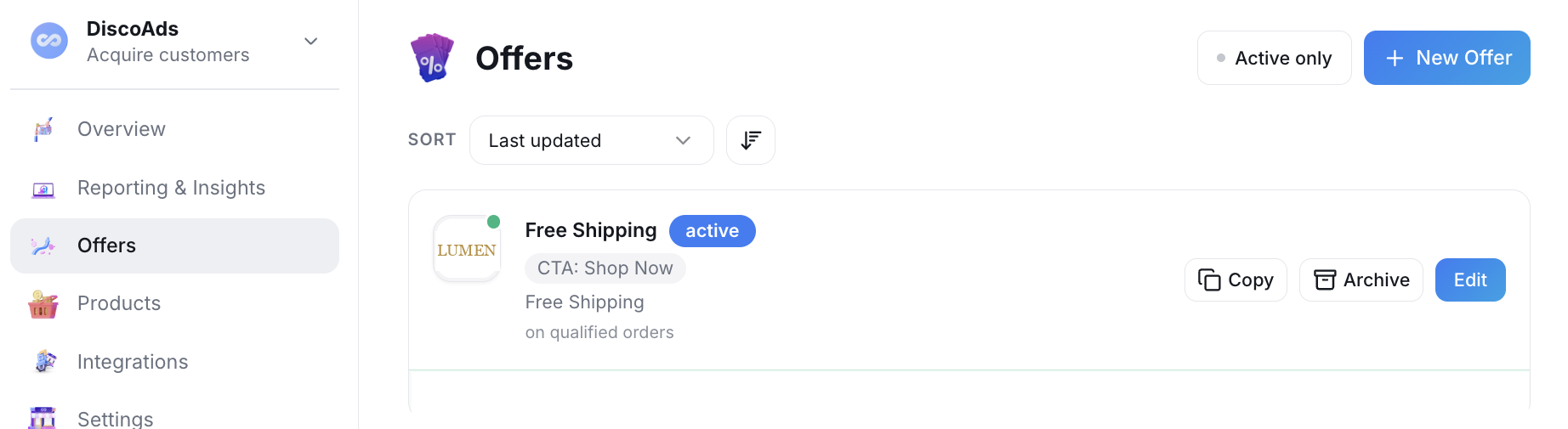
Once you're approved, your offer shows as active in your Offers list:
- Your campaign enters a ramping period while the model calibrates — expect early numbers to move around while the model learns. The ramp-up period typically takes about one month.
- Reporting is under the Reporting tab. See Reading your DiscoAds reporting.
- Copy is the fastest lever on performance. If results are soft early, refresh your heading and creative first. See Improving creative performance.