App SDK (iOS & Android)
Disco's native App SDK shows Disco offers inside your mobile app, on iOS and Android. This page covers both platforms: iOS first, then Android. If your app is built with React Native, use the React Native SDK instead. Current as of iOS SDK 1.0.10. For DiscoBeat channel partners: name the app as a surface at kickoff so your Disco team can set up keys and layouts early (see How your DiscoBeat launch works).
Both SDKs follow the same shape: initialize once at app launch with your ad-serving key, then call Disco.execute with session attributes when your surface is ready. DiscoBeat channel partners: offers serve per publisher, so use each publisher's own ad-serving key, created when Disco approves the publisher. _sandbox_ keys against staging, _live_ keys in production.
iOS
Install
In Xcode, go to File → Add Package Dependencies and enter the package URL:
https://github.com/co-op-commerce-inc/disco-ios-sdk
Choose Up to Next Major Version.
Initialize
Initialize once at app launch, typically from application(_:didFinishLaunchingWithOptions:):
import UIKit
import DiscoSDK

@main
class AppDelegate: UIResponder, UIApplicationDelegate {
    func application(
        _ application: UIApplication,
        didFinishLaunchingWithOptions launchOptions: [UIApplication.LaunchOptionsKey: Any]?
    ) -> Bool {
        Disco.initSdk(apiKey: "API_KEY")
        return true
    }
}
Your API key is your ad-serving key, provided by your Disco team.
Add an inline placement
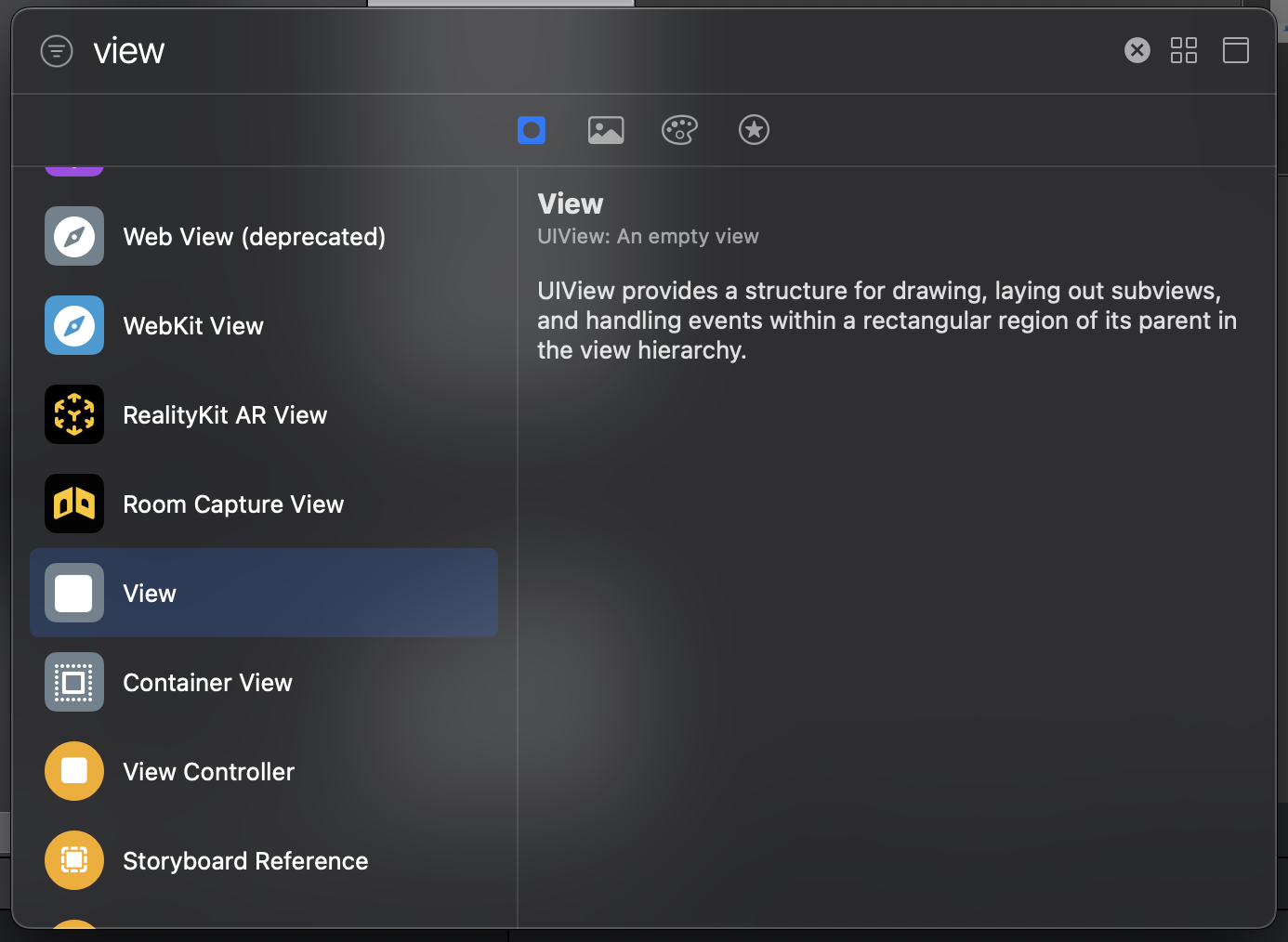
To add an inline placement using a Storyboard, add a new View to your View Controller:
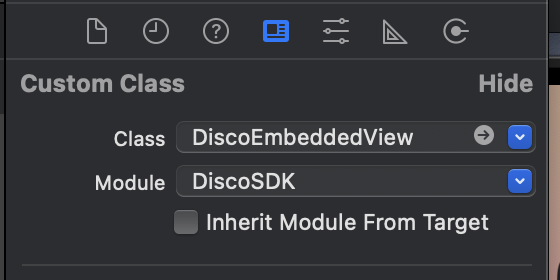
Then, in the Identity Inspector, set the custom class of the View to DiscoEmbeddedView and the module to DiscoSDK:
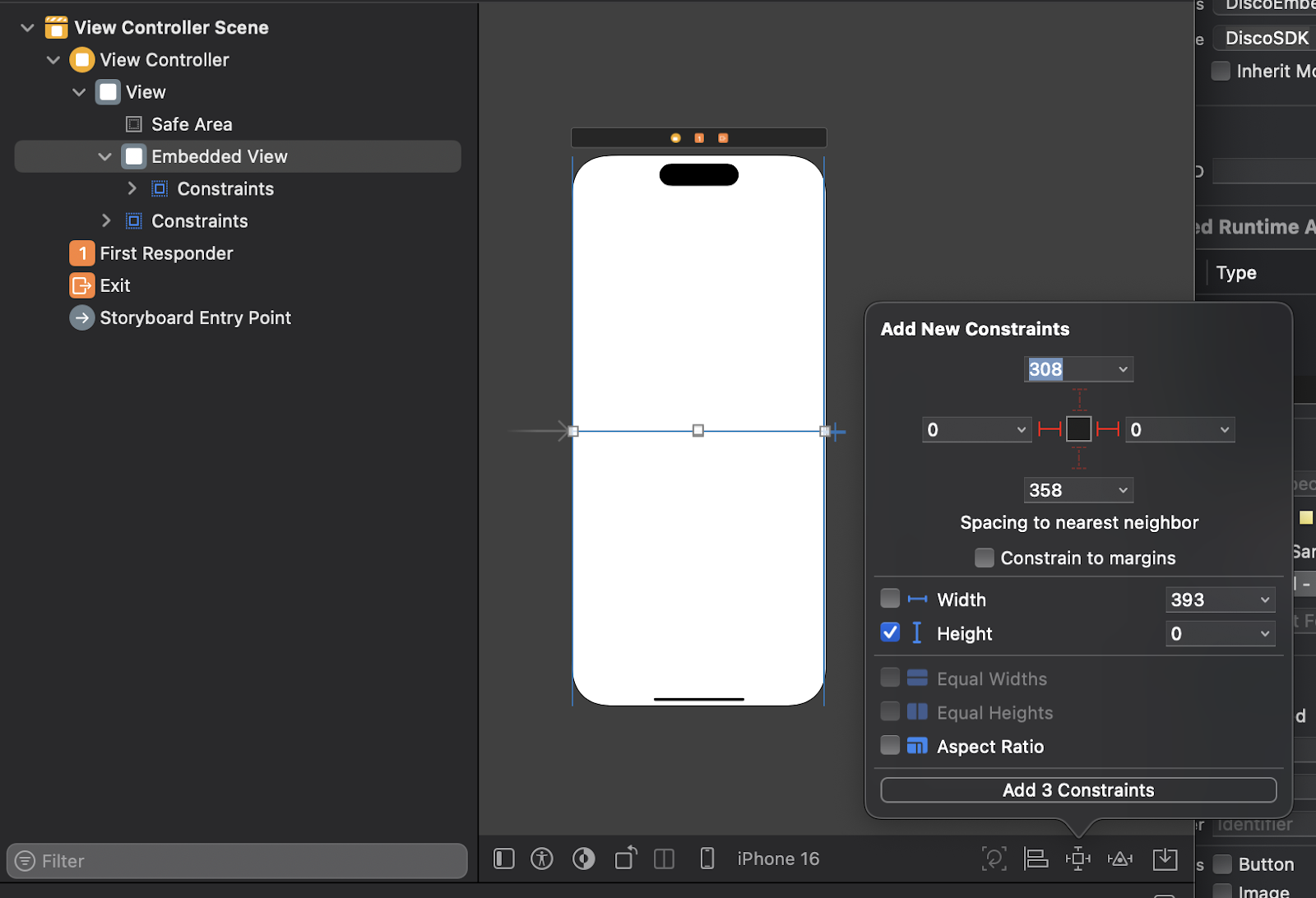
Then define top, leading, and trailing constraints for the placement's width and position. For height, add a height constraint of zero. The DiscoEmbeddedView updates its own height constraint to match the size of the placement:
If you're not using a Storyboard, pass a programmatically created DiscoEmbeddedView instead.
Show offers
Call Disco.execute when your surface is ready, for example when an order-status screen appears:
import UIKit
import DiscoSDK

class ViewController: UIViewController {
    @IBOutlet weak var embeddedView: DiscoEmbeddedView!

    override func viewDidLoad() {
        super.viewDidLoad()

        let attributes: [String: Any] = [
            "user_details": [
                "email": "shopper@example.com",
                "first_name": "Jordan"
            ],
            "placement_details": [
                "view": "ORDER_STATUS",          // e.g. THANK_YOU, ORDER_STATUS
                "widget_id": "YOUR_WIDGET_ID"    // from your Disco team (legacy layout_id also accepted)
            ]
        ]
        Disco.execute(attributes: attributes, placement: .inline(embeddedView))
    }
}
Everything after attributes and placement is optional. The full signature:
Disco.execute(
    attributes: attributes,
    placement: .inline(embeddedView),   // or .overlay, .pullup
    style: StyleOptions(appearance: .system),
    onLoad: { /* widget rendered */ },
    onError: { error in /* handle or log */ },
    isSandbox: true                     // test requests don't affect reporting or attribution
)
Placements
| Placement | What renders |
|---|---|
.inline(view) | Offers render inside a DiscoEmbeddedView you place in your own layout |
.overlay | A fullscreen takeover |
.pullup | A bottom sheet |
ConfigOptions controls dismissal behavior for the modal placements: dismissPullupOnBackdropTap and dismissOverlayOnBackdropTap (both default false).
Attributes
attributes is a dictionary following the same request model as the Recommendations API. See that reference for every available field. The more shopper and order context you pass, the more relevant the offers Disco can return. Relevance is what drives your revenue.
Styling
StyleOptions controls how the widget looks. All parameters are optional:
| Parameter | Default | Controls |
|---|---|---|
appearance | .light | Light theme, dark theme, or follow the device. See below |
widgetBackgroundColor | clear | The widget container background |
slotBackgroundColor | theme card color | Each offer card's background |
slotVerticalSpacing | 16 | Vertical space between offer cards |
slotSidePadding | 0 | Horizontal padding around cards |
acceptButtonBackgroundColor / acceptButtonTextColor | Disco green / white | The offer CTA button |
promoCodeBackgroundColor | Disco green | The promo code chip |
pullupBackgroundColor | theme card color | The pullup sheet background |
pullupOverlayTitle | none | Title text on the pullup sheet |
fontFamily | system | Custom font family. Add the custom font to the app bundle and Info.plist |
Dark mode (iOS SDK 1.0.10+)
If your app renders in dark mode, the widget can match it. Pass an appearance:
.light: the default; matches historical behavior.dark.system: follow the device setting
Disco.execute(
    attributes: attributes,
    placement: .inline(embeddedView),
    style: .init(appearance: .system)
)
The appearance drives the widget's theme: text and background colors follow it automatically, and any colors you've explicitly set in StyleOptions are respected as overrides.
Callbacks
All callbacks are called on the main thread and are safe to update your user interface from.
| Callback | When it fires |
|---|---|
onLoad | The placement loaded and was added to the user interface |
onUnload | The placement completed and was removed from the user interface |
onError | Loading failed. Receives a Swift Error; onLoad/onUnload won't fire |
onShouldShowLoadingIndicator | Loading began. Show your progress view |
onShouldHideLoadingIndicator | Loading finished or failed. Hide your progress view |
Errors passed to onError:
initNotCalled:Disco.initSdkwas not called before callingexecuteplacementLoadError: an error occurred while loading the placement from the Disco backend
Widget events
Subscribe to widget events with Disco.events(layoutId:handler:), passing the layout ID sent in your attributes:
Disco.events(layoutId: "YOUR_LAYOUT_ID") { event in
    // Use event
}
| Event | Meaning |
|---|---|
PlacementInteractive | Over 50% of the placement has been visible in the window for 1 second |
PlacementCompleted | The placement had a single hero slot, the user engaged with it, and the placement was removed |
PlacementFailure | The placement failed to load. Inspect the error property |
SwiftUI
To embed a placement in a SwiftUI view use DiscoEmbeddedSwiftUIView. The parameters are the same as calling Disco.execute:
struct ContentView: View {
    var body: some View {
        ZStack {
            DiscoEmbeddedSwiftUIView(
                attributes: attributes,
                style: .init(),
                config: .init(),
                onLoad: { print("onLoad") },
                onUnload: { print("onUnload") },
                onError: { print("\($0)") },
                onShouldShowLoadingIndicator: { print("show loading") },
                onShouldHideLoadingIndicator: { print("hide loading") },
                isSandbox: true
            )
        }
        .padding()
        .ignoresSafeArea()
    }
}
Crash reporting (dSYMs)
To symbolicate crash logs, download the latest symbol files from the package releases and upload the .dSYM files to your crash reporting tool (e.g., Crashlytics, Sentry).
Android
Install
The Disco Android SDK is deployed via Maven Central. In build.gradle.kts:
dependencies {
    implementation("com.disconetwork:discosdk:1.+")
}
Initialize
Initialize once at app launch, from onCreate in your Application subclass:
class App : Application() {
    override fun onCreate() {
        super.onCreate()
        Disco.initSdk(this, "API_KEY")
    }
}
Your API key is your ad-serving key, provided by your Disco team.
Add an inline placement
Add a DiscoEmbeddedView to your XML layout:
<?xml version="1.0" encoding="utf-8"?>
<LinearLayout xmlns:android="http://schemas.android.com/apk/res/android"
    android:layout_width="match_parent"
    android:layout_height="match_parent"
    android:gravity="center"
    android:orientation="vertical">

    <com.disconetwork.discosdk.DiscoEmbeddedView
        android:id="@+id/discoView"
        android:layout_width="match_parent"
        android:layout_height="wrap_content" />

</LinearLayout>
Set layout_height to wrap_content so the DiscoEmbeddedView can update its height to match the size of the placement. If you're not using an XML layout, pass a programmatically created DiscoEmbeddedView instead.
Show offers
Call Disco.execute when your surface is ready:
class MainActivity : ComponentActivity() {
    override fun onCreate(savedInstanceState: Bundle?) {
        super.onCreate(savedInstanceState)
        setContentView(R.layout.activity_main)

        Disco.execute(
            this,
            attributes,
            Placement.Inline(findViewById(R.id.discoView))
        )
    }
}
Pass a context, your session attributes, and a reference to the DiscoEmbeddedView; everything else is optional. The full signature:
Disco.execute(
    context: Context,
    attributes: Map<String, Any>,
    placement: Placement,
    style: StyleOptions = StyleOptions(),
    onLoad: (() -> Unit)? = null,
    onUnload: (() -> Unit)? = null,
    onException: ((DiscoException) -> Unit)? = null,
    onShouldShowLoadingIndicator: (() -> Unit)? = null,
    onShouldHideLoadingIndicator: (() -> Unit)? = null,
    isSandbox: Boolean = false
)
attributes follows the same request model as the Recommendations API, the same shape as the iOS example above.
Styling
StyleOptions controls how the widget looks:
Disco.execute(
    context = this,
    attributes = attributes,
    placement = Placement.Inline(findViewById(R.id.discoView)),
    style = StyleOptions(slotSidePadding = 16)
)
| Parameter | Default | Controls |
|---|---|---|
widgetBackgroundColor | Color.TRANSPARENT | The widget container background |
slotBackgroundColor | Color.WHITE | Each offer card's background |
slotVerticalSpacing | 16dp | Vertical space between offer cards |
slotSidePadding | 0dp | Horizontal padding around cards |
acceptButtonBackgroundColor / acceptButtonTextColor | Disco green / white | The offer CTA button |
promoCodeBackgroundColor | Disco green | The promo code chip |
font | Roboto | Custom font. Add font files to res/font and use CustomFont.ResourcePack, or add to assets and use CustomFont.AssetPack |
Callbacks
All callbacks are called on the main thread and are safe to update your user interface from. Same set as iOS, with one naming difference: errors arrive via onException, which receives a DiscoException:
INIT_NOT_CALLED:Disco.initSdkwas not called before callingexecutePLACEMENT_LOAD_ERROR: an error occurred while loading the placement from the Disco backend
Widget events
Disco.events("YOUR_LAYOUT_ID") {
    Log.d("Disco", "$it")
}
Same events as iOS: PlacementInteractive, PlacementCompleted, and PlacementFailure (inspect the exception property).
Testing
On both platforms, set isSandbox: true on Disco.execute while testing: sandbox requests render real offers but don't affect reporting or attribution.
Disco.execute(attributes: attributes, placement: .inline(embeddedView), isSandbox: true)
Pair it with your _sandbox_ key against staging. Your Disco team verifies test requests arrive complete before anything goes live (see Build & verify).
Related
- How your DiscoBeat launch works: where the app fits in your launch
- Ad Recommendations API reference: the full attributes field reference
- React Native SDK: the React Native integration
- Web SDK: the web serving integration